
Updated September 10, 2026.
The iOS 27 release date is Monday, September 14, 2026. Apple confirms the date on its iOS overview. Before then, check that your phone is supported and complete a backup. Also look up any feature you're particularly interested in: eligibility for the operating system doesn't automatically include every Apple Intelligence feature.
For most readers, the sensible starting point is the phone you already own. Find its exact model, check your essential apps, and choose a time when you can leave it connected to power through the installation.
Plan around September 14
Apple has confirmed the day. The sources checked here don't specify an exact worldwide release time, so leave some flexibility in your plan if you're hoping to install as soon as the update appears.
The software update is free, according to Apple's September release announcement. Installing the operating system doesn't require a subscription. Charges for separate apps or services, including paid cloud storage, are separate from the update.
Give yourself enough time to handle prompts and check the phone afterward. Starting just before you need it for a call or a journey adds pressure if installation takes longer than you expected.
Check whether your model is supported
Before the iOS 27 release date, compare your model with Apple's compatibility list. For existing devices, it includes the iPhone 11 through iPhone 17 families, iPhone Air, iPhone 16e, iPhone 17e, and iPhone SE models from the second generation onward.
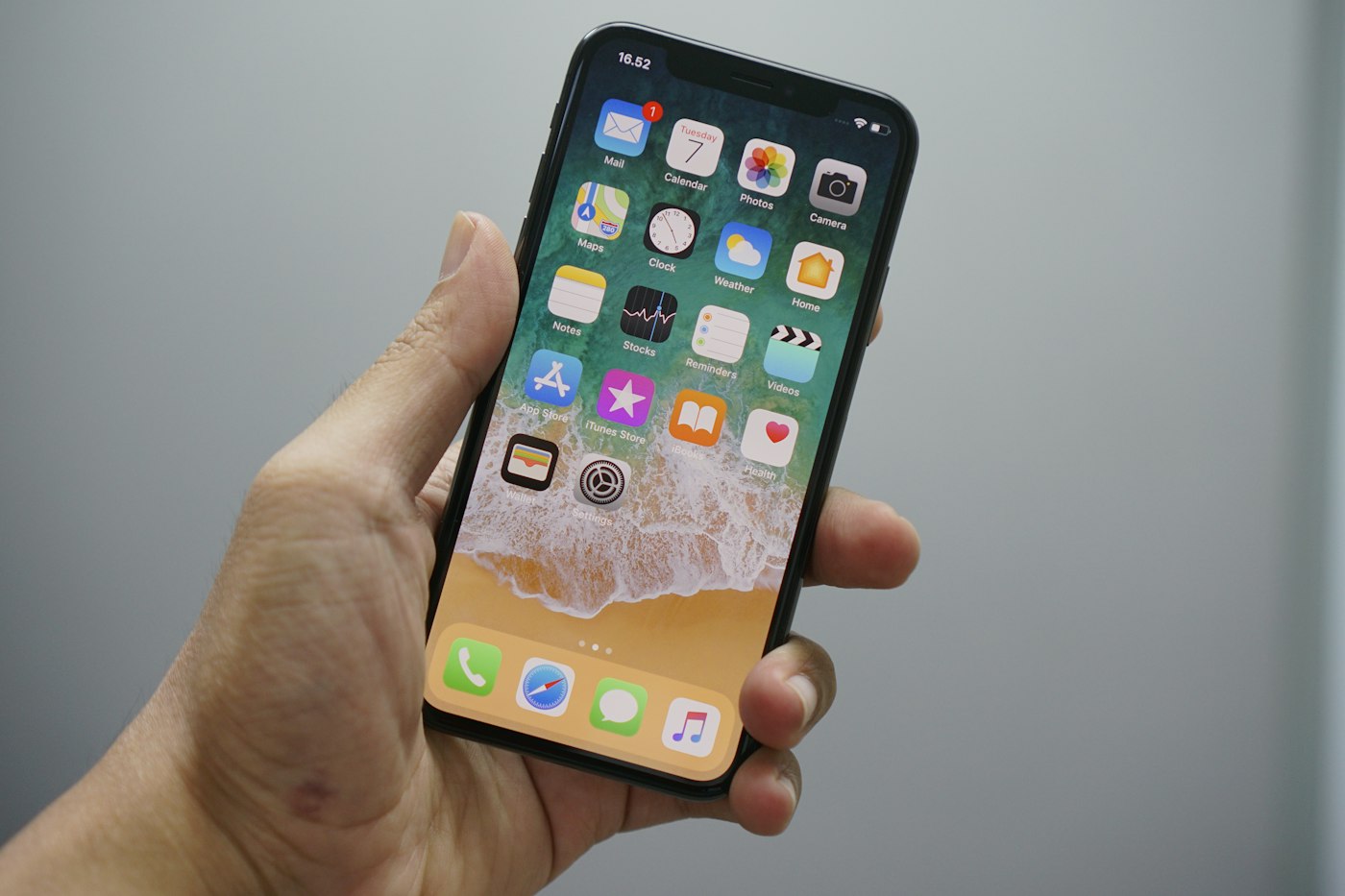
Check the generation carefully if you own an SE or bought your handset secondhand. The date you bought it may tell you little about which model it is. Match the model name with the list before spending time clearing storage.
An unsupported phone won't become eligible through a settings change or file deletion. On a supported phone, available storage is the next thing to check if installation won't proceed.
Apple Intelligence has separate requirements
If you're waiting for the iOS 27 release date to try AI features, check their requirements separately. Apple's existing Apple Intelligence requirements list iPhone 15 Pro models and iPhone 16 models or later. They also specify supported language settings and regional restrictions.
An iPhone 15 and an iPhone 15 Pro differ here. Read the requirements for your exact model and the function you want to use; a general claim that a feature is coming to iPhone may leave out restrictions that affect you.
Apple's September announcement says Siri AI begins rolling out in beta with iOS 27 for supported devices set to English. French, Japanese, Korean, Portuguese, and Spanish support is scheduled for October.
We haven't tested those announced capabilities. If one Siri function is your reason for updating, confirm that its rollout includes your device and language. Installation of the operating system and access to that feature may happen at different times.
Make a backup you can use
Make a fresh backup before the iOS 27 release date so you're ready when you decide to install. Apple supports iCloud and computer backups; its backup guide explains the available methods.
Choose a method you can finish and check. In iCloud, open Settings, tap your name, then open iCloud and iCloud Backup. Look beneath Back Up Now for the last backup's date and time, as described in Apple's iCloud backup instructions. For a computer backup, allow time to connect the phone and approve any prompts. Confirm completion before you move on to the software update.
Encryption changes what a computer backup can contain. Apple says an encrypted backup can include saved passwords and Wi-Fi settings, along with Health data and call history that an unencrypted backup omits. You'll need the backup password to use it later.
Keep the password somewhere you can reach even when the phone is unavailable. Check any app with a separate export or recovery process, especially one holding unsent work. Its developer's instructions should explain how to preserve that material. This is a good time to deal with files you've been meaning to save elsewhere.
Check storage and your essential apps
Use your preparation for the iOS 27 release date to review storage. Begin with downloads you can replace, leaving personal files alone until you know what is safely backed up.
Apple's iPhone storage instructions direct you to Settings, General, then iPhone Storage. Read the recommendations and check how much space individual apps use. Deletion can remove an app's related data as well as the app itself. Offloading is a separate option, so read the action offered before tapping it.
Follow the space requirement shown on your phone. We haven't verified a download size or storage target that applies to every supported model.
Check the apps you need to get through the day. That might include an authenticator for work, banking, or the app holding your transport ticket. Read compatibility notices from the developers; for workplace software, ask IT if you need guidance.
Suppose the installation runs into the time you've set aside for a meeting. Having the joining details on another device would let you attend without rushing the update. Arrange the same kind of backup access for a travel ticket, and let anyone expecting a call know when you plan to be available.
If you're helping someone else prepare for the iOS 27 release date, leave them with the backup status and their chosen installation time written down. Check that they can find the passcode and any recovery information they'll need. That lets them finish the update without depending on you being nearby.
How to install when the update appears
On or after the iOS 27 release date, follow Apple's standard wireless update instructions:
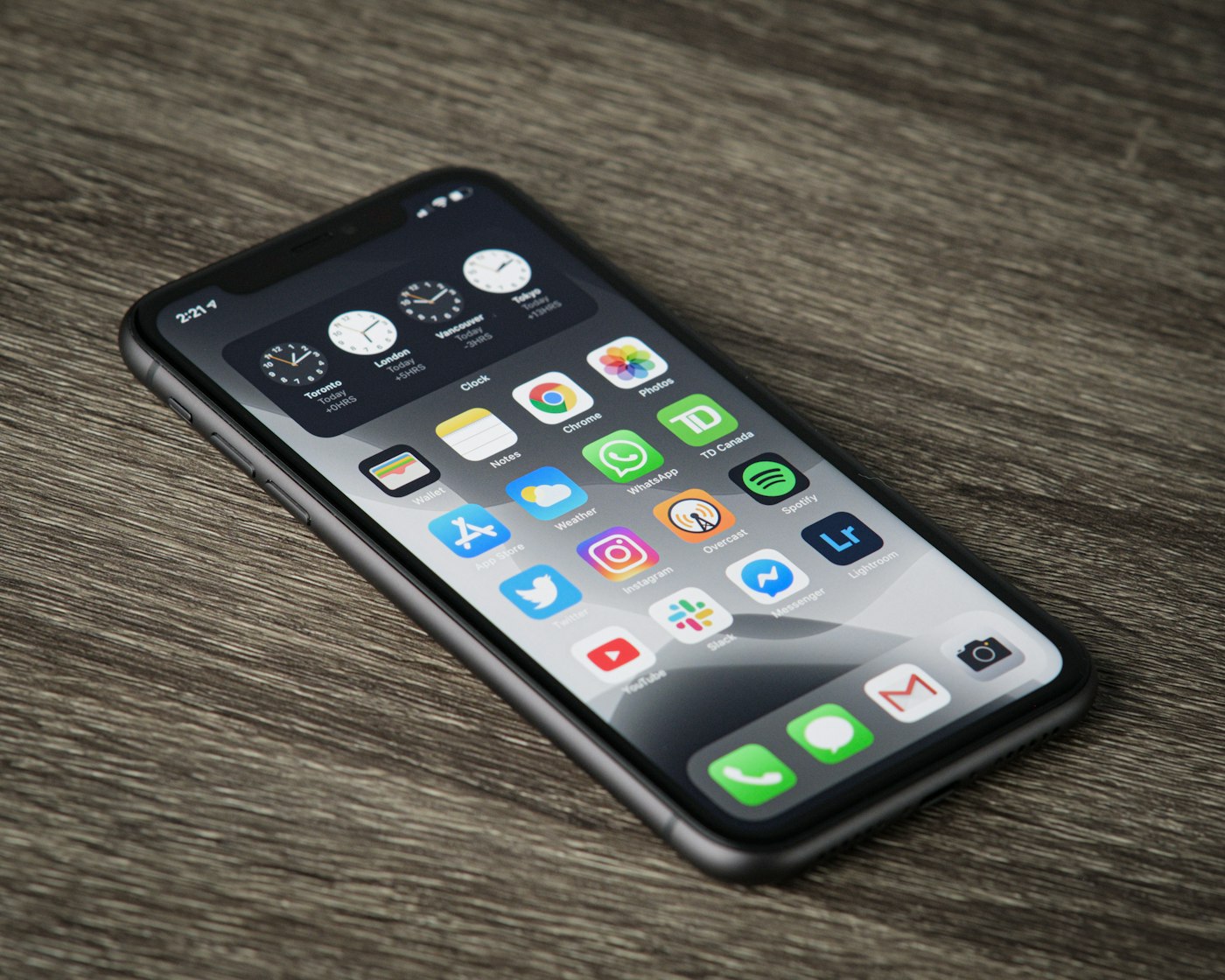
Finish your backup.
Connect the phone to power and Wi-Fi.
Open Settings, then General, then Software Update.
Check the version offered and follow the download and installation prompts.
Have your device passcode ready. If you don't see the update, check whether it has been released and whether your model is supported before changing other settings.
Apple notes that VPN or proxy connections can prevent contact with update servers. If you use a company-managed connection, consult your administrator before changing it. For an error message, use Apple's update troubleshooting guide and follow the advice for that specific problem.
A slow download or missing update isn't a reason to erase the phone. Note the message you see and follow the troubleshooting steps that apply to it.
Should you install immediately or wait?
You can choose an installation day after the iOS 27 release date. We'd update once the backup is complete and essential apps have been checked, at a time when interruptions would be manageable.
If you'll be traveling or presenting to a client, plan the installation afterward. This is scheduling advice; we haven't established a specific fault with the release.
Follow your organization's deployment instructions for a work-managed iPhone. Its applications may need approval before you install a new operating system.
Set a reminder if you postpone it. Pick a day to check the release information again and decide when to install, so the update doesn't disappear from your plans.
What to check after installation
After installing on or after the iOS 27 release date, check that calls and messages work. Open the apps you rely on and confirm you can access important accounts before spending time on the new features.
On an eligible device, Apple Intelligence models may need additional downloading after the software update. Apple recommends keeping the phone on Wi-Fi and power while they download.
For any failure, write down the app name and what you were doing when it happened. Include the exact error message if there is one. Those details give support a more useful starting point than a report that the update isn't working. For help with installation errors, follow Apple's update troubleshooting guide.


